【Adobe Animate終了】代替ソフトデータベース|全11種掲載

【Adobe Animate終了】代替ソフトデータベース|全11種掲載

2026年3月のAdobe Animate販売終了に伴う代替ソフト情報を客観的に整理。ベクター・手描き・VTuber向けなど用途別に11種類のソフトを紹介。価格・対応OS・機能を比較検討できます。
パワーストーンスクール&ショップ アロマヴァンヴェール

Genspark(ジェンスパーク)は、あなたの仕事を代行する「AIエージェント」です。
無料でGensparkを試す

Udemy個人向け定額プランなら月額2,292円~学び放題

【Adobe Animate終了】代替ソフトデータベース|全11種掲載

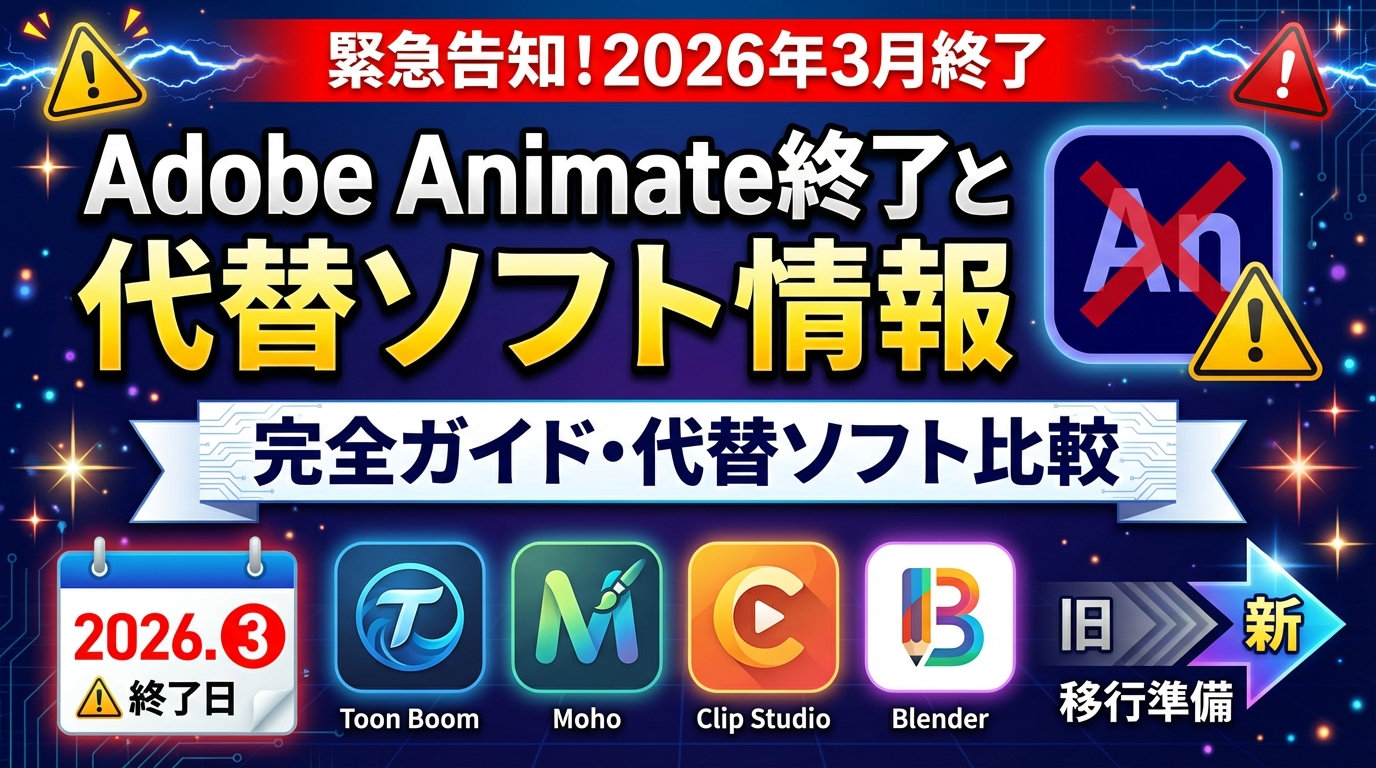
Adobe Animate終了のお知らせと代替ソフト情報まとめ

Adobe Animate(アドビ・アニメイト)が2026年3月で新規販売終了と発表されましたね。

私はAdobe Animateの前身Macromedia Flashだったころに使ったことはあるのですが、
Adobe Animate(アドビ・アニメイト)になってからは使用経験がなく
(というか名前変わってFlashが継続してたのも知らんかった笑)…
今回の終了のニュースを聞いて、はて、代わりのソフトって何になるんだろ?と疑問に思ったので、まとめてみました。

Adobe Animate終了スケジュール

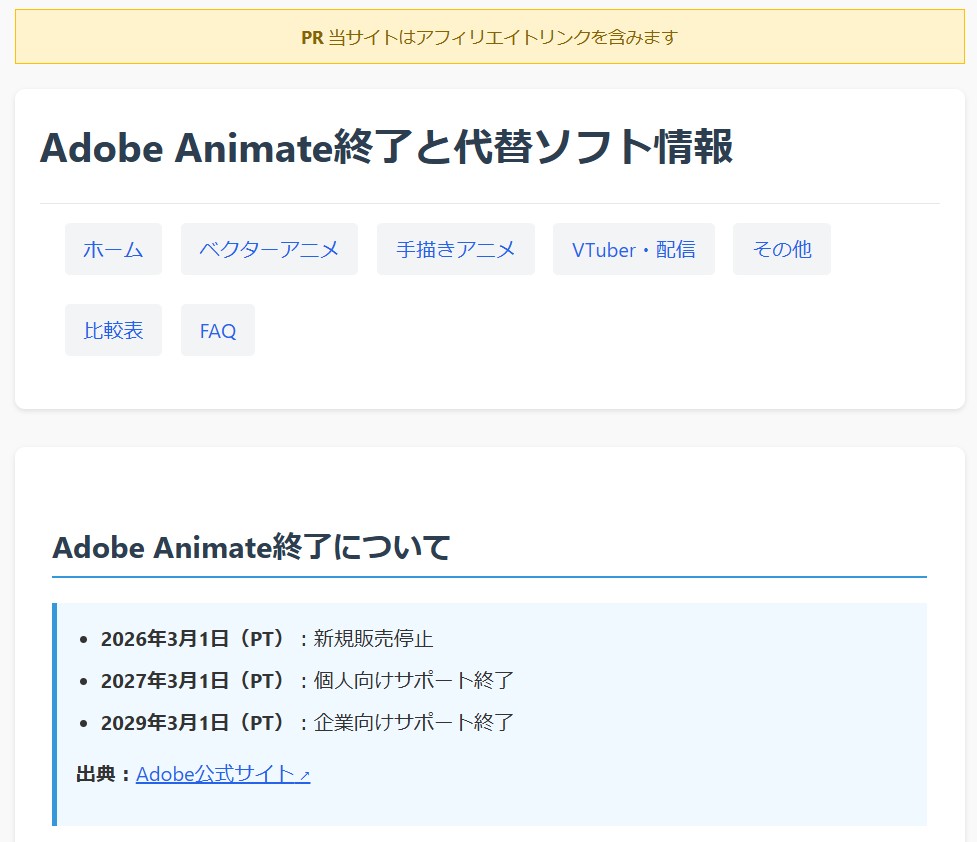
2026年3月1日(PT)以降、Adobe Animateの新規販売が停止されることが発表されました。
詳細なスケジュールは以下の通りです

  • 2026年3月1日(PT):新規販売停止
  • 2027年3月1日(PT):個人向けサポート終了
  • 2029年3月1日(PT):企業向けサポート終了

既存ユーザーは引き続き利用可能ですが、サポート終了期限が設定されているため、今後の制作環境について検討する必要があります。

代替ソフトについて

「次はどのソフトを使えばいいの?」とお悩みの方へ、代替ソフトウェアの情報をまとめてみました。

ベクターアニメーション向け

Moho Pro

Moho Proは、Lost Marbleが開発するベクターベースの2Dアニメーション制作ソフトウェアです。ボーンリギングシステムを搭載し、キャラクターに骨格を設定してスムーズなアニメーションを作成できます。ベクター描画ツールを使用して直接ソフト内で作画が可能で、物理演算やパーティクルエフェクトなどの機能も備えています。買い切り型の価格設定により、継続的なコストが発生しない点が特徴です。

私はMohoPro12を所有してるんですがほとんど使用しておらず…(嘘みたいに安かったからとりあえず買ったという…)

Assembling an Animated Moho Production

Assembling an Animated Moho Production

<p>Moho Pro is a powerful piece of software which allows for character creation and animation, scene building, audio implementation, and much more. It can be tricky to know how to assemble a full sequence given all the options. This course aims to teach how to animate and edit a one minute Moho scene using rigs, sets and props to deliver not only a fun animation, but a solid learning experience you can build upon.</p><p>This course acts as the final step to all my Moho courses. In the past I taught how to design and animate characters as well as build scenes and create pre-made actions. This course takes all of that to create a final product for work, personal or entertainment purposes.</p><p>More specifically this course covers:</p><ul><li><p>Animating 3D ships to create a fun space battle</p></li><li><p>Lip syncing and body language for multiple characters</p></li><li><p>Working within full 3D sets to build depth and atmosphere</p></li><li><p>Correcting timing and other animation anomalies that can pop up</p></li><li><p>Creating vector particle effects such as lightning, smoke and dust</p></li><li><p>Creating a teleportation effect using Moho 13's new bitmap tools</p></li><li><p>Using layer references to correct animations and create eye catching effects</p></li><li><p>Working with pre-made PNG particle effects to compliment action</p></li><li><p>Editing multiple Moho scenes together with the Sequencer</p></li><li><p>Editing multiple Moho video scenes in Premiere</p></li><li><p>Exporting the final sequence for distribution</p></li></ul>

ずっとソースネクストさんで取り扱いしてるとおもってたんですが、いつの間にか取り扱い終了してて、使い方動画だけになってますね。

公式Youtubeチャンネルに、無料のチュートリアル動画があります。

Toon Boom Harmony

Toon Boom Harmonyは、Toon Boom Animationが開発する商業アニメーション制作向けのソフトウェアです。テレビアニメーションや劇場作品の制作で世界中の多くのスタジオで採用されています。ベクターとビットマップの両方に対応し、リグアニメーション、フレームバイフレームアニメーション、特殊効果など、プロフェッショナルなアニメーション制作に必要な機能を包括的に提供しています。

Synfig Studio

Synfig Studioは、オープンソースコミュニティによって開発されているベクターベースの2Dアニメーション制作ソフトウェアです。完全無料で利用でき、Windows、Mac、Linuxの各プラットフォームに対応しています。トゥイーンアニメーション機能により、中割りを自動生成することができます。50種類以上のレイヤータイプを備え、複雑なアニメーション表現が可能です。

Creating animation in Synfig Studio

Creating animation in Synfig Studio

<p>In this course you will learn how to create 2D animation using Synfig Studio animation software package. </p><p>Synfig Studio is a free and open-source application available for Windows, Linux and Mac OSX. Do you want to create your own animated movie, or just animated postcard, or animation for a game? Synfig can do that for you! You can use Synfig anywhere without limitations - at home, at work or at school.</p><p><strong>Create your own animation using Synfig Studio</strong></p><ul><li>Learn all basic principles of creating animation of Synfig Studio.</li><li>Build and animate characters for your animation.</li><li>Learn the basic and everyday animation skills, like face animation and walkcycle.</li></ul><p><strong>Cutout (sprite) animation technique</strong></p><p>In this course I will show you how to create animation constructed from bitmap images. This approach is called "cutout" or "sprite" technique. Cutout technique is known to be the fastest way to create animation and at the same time it's the easiest way to learn it. Despite it's simplicity, the cutout technique remains very expressive and used by many creators to create exciting animation.</p><p><strong>Contents and Overview </strong> </p><p>This course is created for people who would like to learn how to use Synfig Studio in a short time. It equally fits for those who just starting to learn computer animation, as well as for established artists who would like to master cutout technique with free software.</p><p>The course will guide you from the very basics of application interface to the techniques of creating character animation and some advanced features. The sample files are also included, so you will be able to work alongside with instructor during the course. Also, all the lectures in the course are available for downloading and watching offline. </p><p>For your convenience the course includes subtitles in English, Spanish, Italian, and French.</p><p>Note: This course is not for you if you would like to learn the technique of frame-by-frame (traditional) animation.</p><p><strong>Credits:</strong></p><ul><li>Written and recorded by: Konstantin Dmitriev</li><li>Translated by: Anna Orlova </li><li>Narrated by: Terry Hancock</li></ul>

手描きアニメーション向け

CLIP STUDIO PAINT


CLIP STUDIO PAINTは、セルシスが開発するイラスト・漫画・アニメーション制作ソフトウェアです。EX版ではフレームバイフレームアニメーション機能を搭載し、タイムライン上で絵を描き進めてアニメーションを作成できます。カメラワーク、オーディオ対応、動画書き出し機能が備わっています。Windows、Mac、iPad、Androidなど多様なデバイスで使用可能です。

CLIP STUDIO PAINT EXは漫画を描くなら業界標準ソフトという感じで、私も所有しています。アニメ機能もあるのは知ってるのですが使ってないです。

【2025年最新版】CLIP STUDIO PAINT(クリスタ) シンプルモード完全ガイド|デジタルイラスト入門へ

【2025年最新版】CLIP STUDIO PAINT(クリスタ) シンプルモード完全ガイド|デジタルイラスト入門へ

<p>シンプルモード完全ガイド(2025年11月26日更新)</p><p>初心者に寄り添う「デジタルお絵描きの辞典」講座。</p><p><br /></p><p>デジタルイラストを始めたいけど、<br />「どこから手をつけたらいいかわからない…」<br />そんなふうに感じたことはありませんか?</p><p><br /></p><p>CLIP STUDIO PAINT(クリスタ)には、本格的な制作ができる「スタジオモード」があります。<br />多機能で魅力的ですが、そのぶん操作画面は複雑。最初の一歩でつまずきやすい方も多いです。</p><p>だからこそ、これからクリスタを始める方におすすめなのが、「シンプルモード」です。</p><p>ツールが厳選されていて操作もわかりやすく、<br />「描くこと」に集中できる設計です。<br />初めてでも安心して、楽しく学べます^^</p><p><br /></p><p><strong>この講座でできること</strong></p><p>・iPad・スマホでデジタルお絵描きを気軽にスタート</p><p>・シンプルモードを中心に、迷わず描ける環境を整える</p><p>・基礎から中級者へのステップアップまで対応</p><p>・今後のステップアップ編・スタジオモード編・実践編にも対応予定</p><p><br /></p><p><strong>初めてでも安心</strong></p><p>・無理なく学べるステップ構成</p><p>・つまずきやすいポイントも丁寧に解説</p><p>・必要な部分だけをすぐ確認できる辞書のような構成</p><p>・継続して成長できる</p><p><br /></p><p><strong>講座は随時アップデート</strong></p><p>・新しい知識やノウハウも追加</p><p>・何度でも学び直せて、スキルもアップデート</p><p>・楽しみながら挑戦</p><p>・新しいことに挑戦するのは少し勇気がいります</p><p>・でもそれは“楽しい冒険のはじまり”</p><p>・もっと自由に、理想の絵を描けるようにサポートします</p><p><br /></p><p><strong>講師・Asaからのメッセージ</strong></p><p>サムネイルの女の子は、少し不安でも一歩踏み出そうとしているあなた自身かも。</p><p>この講座が、その「最初の一歩」にそっと寄り添えたら嬉しいです^^</p><p><br /></p><p>【使用BGM】FREE KHAIM MUSICを一部講義で使用</p>

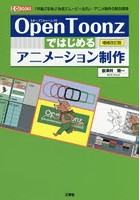
OpenToonz

OpenToonzは、スタジオジブリが協力して開発されたオープンソースのプロ向けアニメーション制作ソフトウェアです。商業アニメーションソフト「Toonz」をベースに、ジブリ独自の機能を加えたバージョンです。スキャンした紙の線画のクリーンアップ、塗り、撮影(合成)までを行える包括的な機能を備え、無料で利用できます。

Creating a 2D Animated scene with OpenToonz (FREE Software)

Creating a 2D Animated scene with OpenToonz (FREE Software)

<p>This course shows how you can put together a complete shot for your animation using the FREE 2D animation software, OpenToonz. The shot I chose, was to recreate the whistling scene from the classic, Steamboat Willie.</p><p>I'll show how you create the project and each of the scenes. I explain why I created multiple "scenes", and why YOU might want to create multiple OpenToonz scenes for the shot and how to combine them into your finished animation.</p><p>I'll draw the background, showing how you can use the Raster brushes to create an old-style pencil effect. I show how to use multiple layers to build up your background image and make it infinitely scrollable.</p><p>I'll add the soundtrack, so I can time the animation to match it.</p><p>Then I show the process for sketching, then inking your character animation; reusing drawings for the looping section, which saves redrawing the same action. Animation takes a long time, so you should reuse drawings when you can and take other shortcuts to speed up the process. I show as much of this as I can in this course. To help with reuse and animation, I separated Mickey into different parts and show how you can do this with your own animations.</p><p>Finally, as a bonus, I'll show how you can re-work the animation to create an engaging vertical style "short" video for sharing on your socials, using your work so far, by sliding different layers into view and re-sizing the camera to fit the new layout.</p>

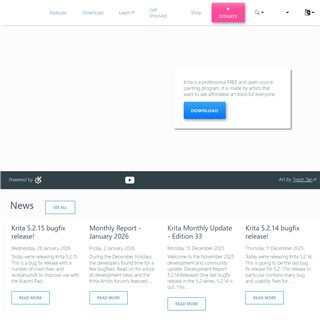
Krita

Kritaは、KDEコミュニティが開発する無料のペイントソフトウェアで、アニメーション機能も搭載しています。ブラシエンジンが充実しており、デジタルペインティングに適しています。タイムライン機能を使用してフレームバイフレームアニメーションを作成でき、オニオンスキン機能やオーディオ対応も備えています。Windows、Mac、Linuxで使用可能です。

Kritaは無料で使えるペイントソフトで、画像生成AIにも対応しているので使用していますが、アニメ機能があることを今知りました。今度やってみよう。

Digital painting with Krita 5.0 for beginners

Digital painting with Krita 5.0 for beginners

<p>"<strong>Krita</strong>" is a graphic application comparable to Photoshop. But unlike Photoshop, Krita is <strong>free</strong> and <strong>open-source</strong> software. So, you don't need to pay anything to download and use it. Another thing that makes Krita different from Photoshop, is that Krita is more <strong>focused on digital painting</strong>. That is why in Krita, you can find many features related to digital painting that do not exist in Photoshop. If you need software for drawing or creating illustrations, then Krita will make you feel right at home.</p><p>If you have never used Krita before or even never used any graphic software such as Photoshop, Gimp, and so on. You don't need to worry. Because we will start from the <strong>very basics</strong>. I have carefully crafted the curriculum for convenience and speed. In sha Allah, you can master Krita <strong>quickly</strong> but through an <strong>easy</strong> and <strong>enjoyable</strong> learning experience.</p><p><br /></p><p><strong>What you will learn</strong></p><p>There are a lot of things that you are going to learn in this course. Just for a quick preview, this online course consists of 8 chapters, outside the introduction chapter.</p><p><strong>In chapter zero</strong> or the introduction chapter, you will learn how to set up the drawing tablet. And also various tips to make Krita perform optimally.</p><p>Then in the <strong>first chapter</strong>, you will learn the theories and concepts around computer graphics which will be relevant later in the digital painting process. You will learn the difference between raster and vector graphics. Then learn various types of color models that exist in the world, such as RGB and HSV. Then learn the basic concepts behind "bits per channel", "high range images", "hexadecimal" color codes, and so on.</p><p>In the <strong>second chapter</strong>, you will start learning the basic features of Krita. From how to work with documents. Understanding the UI and how to tweak it. Then learn the different methods of canvas navigation.</p><p>In the <strong>next chapter</strong>, you will learn how to use the "freehand brush tool" and also how to work with color in Krita. From choosing and managing "brush presets". How to use the "pop-up palette". Understanding various parameters related to brush, such as "size", "opacity", "flow", "eraser mode", etc. Then learn how to use the "advanced color selector", "color sampling" technique, how to use the "color palette", and so on.</p><p>In the <strong>fourth chapter</strong>, we are going to discuss various tools that are based on the brush engine. We will learn tools like the "line tool", "rectangle tool", "Ellipse tool", "polygon tool", "polyline tool", and so on.</p><p>In the <strong>fifth chapter</strong>, you will learn about the selection and layer composition. We will start by discussing the basic selection techniques. Then move on to custom-shaped selection techniques. Then discuss the background layer. Learn the different types of layers available in Krita. Understand various properties related to layers. Learn to make complex compositions using "group layer", "alpha inheritance", "blending mode", etc. In this chapter, we will draw a simple landscape illustration using various tools and features we discussed earlier.</p><p>In <strong>chapter six</strong>, you will learn the basic techniques of drawing and coloring in Krita. To practice the techniques, you will create an ax weapon illustration from start to finish. You will start by drawing the sketch. Then learn various techniques for drawing smooth "line arts". Then learn the various types of "assistant tools" available in Krita. You will also learn different approaches of adding base colors to a drawing. One of the techniques is to use the "colorize mask" feature. After that, you will learn how to add shading and highlight colors with a style you often see in superhero comics.</p><p>In the <strong>seventh chapter</strong>, you will learn the basics of creating digital paintings with smoother shading colors. You will start by preparing all the brush presets. Then learn to create custom shortcuts for faster workflow. Then we will discuss the basic concepts of shading. Learn how to form any shape we want by manipulating the color gradation on the canvas. Then we move on to learn different shading techniques. After that, we will put into practice the techniques that we learned by making a skull illustration. From drawing the sketch, adding the base color, applying "shading" and "highlight" colors, and finally adding details and textures to the drawing.</p><p>In the <strong>last chapter</strong>, we are going to discuss the workflow for creating a non-destructive illustration. We are going to create a tree on the cliff illustration from start to finish using all the techniques we learned before. The benefit of having a non-destructive composition is that it will be easier if we need to make some changes or revisions. In some cases, this kind of workflow becomes very crucial. Such as when you need to create a lot of variations from a single artwork as quickly as possible.</p><p><br /></p><p>So, <strong>join the course now</strong>! And start creating beautiful artworks using Krita.</p><p><br /></p>

VTuber・配信向け

Cartoon Animator 5

Cartoon Animator 5は、Reallusionが開発する2Dキャラクターアニメーションソフトウェアで、特にVTuber活動やライブ配信に適しています。Webカメラを使用して顔の動きをリアルタイムでキャラクターに反映させるモーションキャプチャ機能を搭載しています。イラストや写真を読み込んでアニメーションさせることが可能で、買い切り型の価格設定が採用されています。

ライブ配信にも使えるアニメ作成ソフト「Cartoon Animator 5 +表情モーキャプ・プラグイン +パワーツールズv1~v3」
簡単に本格アニメーションを作れるソフト「Cartoon Animator5」

Animate Your First Character Fast in Cartoon Animator 5

Animate Your First Character Fast in Cartoon Animator 5

<p><strong>Bring Your Characters to Life in Less Than Two Hours 窶・Not Weeks!</strong></p><p>You窶况e got great ideas. You窶况e got characters you can窶冲 wait to share with the world. But when you open <strong>Reallusion窶冱 Cartoon Animator 5</strong> for the first time窶ヲ it窶冱 a lot. Menus, tools, buttons everywhere 窶・where do you even start?</p><p>This course is your shortcut past the overwhelm and straight into <strong>making your first animations</strong>. No endless theory. No getting lost in unnecessary features. I窶冤l take you by the hand and show you exactly how to use pre-made characters and Cartoon Animator窶冱 <strong>time-saving magic</strong> so you can start animating almost immediately.</p><p>I窶冦 not just showing you the basics 窶・I窶冦 teaching you <strong>the same streamlined techniques I窶况e refined over more than a decade</strong> using this software. You窶冤l learn how to get expressive facial expressions without hours of tedious keyframing, and how to quickly edit and save custom motions built entirely from existing clips.</p><p>Whether you窶决e starting from zero or you窶况e dabbled before, you窶冤l gain the skills to <strong>bring your characters to life faster, with more clarity and confidence</strong>. And the best part? By the time you finish, you窶冤l not only have your first polished animation, but you窶冤l also understand Cartoon Animator well enough to dive into Reallusion窶冱 official tutorials with ease 窶・less confusion, less frustration.</p><p>Stop imagining your characters moving. Start seeing them come alive today.</p>

Live2D


Live2Dは、Live2D Inc.が開発する2Dイラストを立体的に動かす技術とソフトウェアです。1枚のイラストに対してメッシュ分割とパラメータ設定を行い、様々な角度や表情の動きを表現できます。VTuber業界で広く使用されており、無料のFREE版と商用利用可能なPRO版があります。別途トラッキングソフトと組み合わせることでライブ配信が可能です。

その他の選択肢

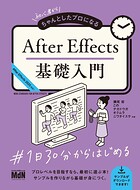
Adobe After Effects

Adobe After Effectsは、Adobeが開発するモーショングラフィックスおよび視覚効果制作ソフトウェアです。パペットツールを使用したキャラクターアニメーション、キーフレームアニメーション、各種エフェクトの適用が可能です。Animateと同じAdobe製品であり、Creative Cloudプランに含まれるため、既存のAdobeユーザーにとっては移行先の一つとなります。

【After Effectsパーフェクトガイド】52講義 36時間!全機能を完全攻略!ロゴ/テロップ/キャラ/インフォ

【After Effectsパーフェクトガイド】52講義 36時間!全機能を完全攻略!ロゴ/テロップ/キャラ/インフォ

<p><strong>「After Effectsを始めたけど、何から手をつけていいか分からない…」</strong><br /><strong>「チュートリアル動画を真似するだけでは、応用が利かずに挫折してしまった…」</strong></p><p>もしあなたがそんな悩みを抱えているなら、このコースがあなたのための<strong>最終的な答え</strong>になります。</p><p><br /></p><p>After Effectsは、映像表現の可能性を無限に広げる強力なツールですが、その多機能さゆえに独学での習得が非常に難しいソフトです。</p><p>多くの人が「何となく」で機能を使い、プロが作るような滑らかで魅力的なアニメーションとの差に悩んでいます。</p><p>このコースは、単なるツールの操作方法をなぞるだけではありません。<strong>なぜその動きが魅力的に見えるのか?</strong> という「原理原則」から徹底的に解説し、あなたが【「自分で考えて」クオリティの高い映像を制作できる】ようになることを目指します。</p><p><br /></p><p>コースは「基礎学習」「深掘り学習」「実践学習」という、挫折しにくい体系的な3ステップで構成しています。</p><p><br /></p><ol><li><p><strong>【基礎学習】</strong> まずは基本操作と簡単なアニメーション作成を通して、After Effectsに慣れることから始めます。「作ってみる」楽しさを感じながら、土台となる知識を固めます。</p><p><br /></p></li><li><p><strong>【深掘り学習】</strong> 次に、キーフレーム、マスク、3D、エクスプレッション、描画モードといったAfter Effectsの核心機能を一つひとつ徹底的に解説します。「アニメーションの原則」や「色の組み合わせ方」など、あなたの作品をプロレベルに引き上げるための「思考法」を学びます。</p><p><br /></p></li><li><p><strong>【実践学習】</strong> 最後に、これまでに学んだすべてのスキルを総動員します。ニュース風のテロップ、手書き風のロゴアニメーション、滑らかに歩くキャラクターアニメーション、ビジネスで使えるインフォグラフィックスなど、<strong>実際の案件でそのまま使える17種類の多彩な作例</strong>に挑戦します。</p></li></ol><p>このコースで作成した作品は、すべてあなたのポートフォリオとして公開可能です。</p><p><br /></p><p>「After Effectsは難しい」というイメージを覆し、<strong>「After Effectsは楽しい!」に変わる瞬間を、ぜひこのコースで体験してください。</strong></p><p>あなたのクリエイターとしてのキャリアを、ここから本格的にスタートさせましょう。</p><p><br /></p><p>= = = = = = = =</p><p><strong>カリキュラム一覧</strong></p><p><br /></p><p><strong>■ セクション1:はじめに</strong></p><p>コース紹介</p><p><br /></p><p><strong>■ セクション2:準備:インストール方法</strong></p><p>インストール方法について</p><p><br /></p><p>- - - - - - - -</p><p><br /></p><p><strong>■ セクショ3:基礎学習1:操作画面/基礎用語/テキストアニメーション/ショートカットキー/制作の流れ</strong></p><p>操作画面について</p><p>-  ダウンロード:動画素材_空 学習用素材</p><p>基礎用語25個からソフト全体の機能を知ろう</p><p>アフターエフェクトでの動画制作の流れ</p><p><br /></p><p><strong>■ セクション4:基礎学習2:テキストアニメーション/シェイプアニメーション/パスアニメーション/キャラクターアニメーション</strong></p><p>テキストアニメーションを作ろう</p><p>シェイプアニメーションを作ろう</p><p>パスアニメーションを作ろう</p><p>-  ダウンロード:キャラクターアニメーション 学習用素材</p><p>キャラクターアニメーションを作ろう</p><p><br /></p><p><strong>■ セクション5:基礎学習3:3Dアニメーション/トラッキング/グリーンバック/ショートカットキー</strong></p><p>3Dアニメーションを作ろう</p><p>-  ダウンロード:トラッキングアニメーション 学習用素材</p><p>トラッキングアニメーションを作ろう</p><p>-  ダウンロード:グリーンバック  学習用素材</p><p>グリーンバックアニメーションを作ろう</p><p><br /></p><p><strong>■ セクション6:基礎学習4:環境設定/ショートカットキー</strong></p><p>環境設定を変更しよう</p><p>-  ダウンロード:ショートカットキー早見表一式</p><p>ショートカットキーを使ってみよう</p><p><br /></p><p>- - - - - - - -</p><p><br /></p><p><strong>■ セクション7:深堀り学習1:キーフレーム/キーフレーム速度/グラフエディター</strong></p><p>キーフレームについて</p><p>キーフレーム速度について</p><p>グラフエディターについて</p><p>-  ダウンロード:キーフレーム 学習用素材_スマホ操作</p><p>色んなキーフレームを使ってみよう!</p><p><br /></p><p><strong>■ セクション8:深堀り学習2:シェイプ/パス</strong></p><p>シェイプ について</p><p>パスについて</p><p>パスアニメーションを作ろう!</p><p><br /></p><p><strong>■ セクション9:深堀り学習3:マスク/トラックマット</strong></p><p>マスクについて</p><p>トラックマットについて</p><p>マスクとトラックマットを使ってみよう!</p><p><br /></p><p><strong>■ セクション10:深堀り学習4:アニメーター/シェイプ_パス_追加</strong></p><p>テキスト_アニメーターについて</p><p>シェイプ_パス_追加について</p><p>アニメーターと追加を使ってみよう!</p><p><br /></p><p><strong>■ セクション11:深堀り学習5:描画モード/レイヤースタイル</strong></p><p>描画モードについて</p><p>レイヤースタイルについて</p><p>描画モードとレイヤースタイルを使ってみよう!</p><p><br /></p><p><strong>■ セクション12:深堀り学習6:エフェクト</strong></p><p>-  ダウンロード:エフェクト一覧表 学習用素材</p><p>エフェクトについて</p><p><br /></p><p><strong>■ セクション13:深堀り学習7:エクスプレッション</strong></p><p>-  ダウンロード:エクスプレッション一覧 学習用素材</p><p>エクスプレッションについて</p><p>エクスプレッションを使ってみよう!</p><p><br /></p><p><strong>■ セクション14:深堀り学習8:3Dアニメーション</strong></p><p>3Dについて</p><p>3Dアニメーションを作ってみよう!</p><p><br /></p><p><strong>■ セクション15:深堀り学習9:アニメーションの原則/色の組み合わせ</strong></p><p>アニメーションの原則</p><p>色の組み合わせ方</p><p><br /></p><p>- - - - - - - -</p><p><br /></p><p><strong>■ セクション16:実践学習について</strong></p><p>実践学習について</p><p><br /></p><p><strong>■ セクション17:実践学習:テロップアニメーション</strong></p><p>テロップアニメーション_アニメーター_位置</p><p>-  ダウンロード:テロップアニメーション_アニメーター_スケール用:文言 使用フォント</p><p>テロップアニメーション_アニメーター_スケール</p><p><br /></p><p><strong>■ セクション18:実践学習:シェイプアニメーション</strong></p><p>-  ダウンロード:シェイプアニメーション_テロップ:文言</p><p>シェイプアニメーション_テロップ</p><p>シェイプアニメーション_パーティクル</p><p><br /></p><p><strong>■ セクション19:実践学習:テキストアニメーション</strong></p><p>-  ダウンロード:実践用_画像素材_テキストアニメーション</p><p>テキストアニメーション</p><p>-  ダウンロード:実践用_ロゴ画像 テキストアニメーション_オープニング</p><p>テキストアニメーション_オープニング</p><p><br /></p><p><strong>■ セクション20:実践学習:トランジション</strong></p><p>トランジション_ヨコ</p><p>トランジション_ナナメ</p><p><br /></p><p><strong>■ セクション21:実践学習:ロゴアニメーション</strong></p><p>-  ダウンロード:ロゴアニメーション_シグネチャー 素材URL</p><p>ロゴアニメーション_シグネチャー</p><p>ロゴアニメーション_レタリング</p><p>-  ダウンロード:実践用_イラスト画像_ロゴアニメーション_バウンス</p><p>ロゴアニメーション_バウンス</p><p><br /></p><p><strong>■ セクション22:実践学習:キャラクターアニメーション</strong></p><p>-  ダウンロード:実践用_イラストレーターデータ キャラクターアニメーション_フェイス_forAE</p><p>キャラクターアニメーション_フェイス</p><p>-  ダウンロード:実践用_イラストレーターデータ キャラクターアニメーション_シェイプ_forAE</p><p>キャラクターアニメーション_シェイプ</p><p>-  ダウンロード:実践用_イラストレーターデータ キャラクターアニメーション_ウォーク_forAE</p><p>キャラクターアニメーション_ウォーク</p><p><br /></p><p><strong>■ セクション23:実践学習:インフォグラフィックス</strong></p><p>-  ダウンロード:実践用_イラストレーターデータ_画像素材URL インフォグラフィックス_マップアニメーション</p><p>インフォグラフィックス_マップアニメーション</p><p>-  ダウンロード:実践用_動画素材URL インフォグラフィックス_サークルアニメーション_事業紹介</p><p>インフォグラフィックス_サークルアニメーション</p><p>-  ダウンロード:実践用_イラストレーターデータ_画像素材URL インフォグラフィックス_円グラフ</p><p>インフォグラフィックス_円グラフ</p><p>= = = = = = = =</p>

Wick Editor

Wick Editorは、オープンソースプロジェクトとして開発されているWebベースのアニメーション制作ソフトウェアです。ブラウザ上で動作するためインストール不要で、完全無料で利用できます。Flash/Animateに似たインターフェースを持ち、タイムラインベースでアニメーションを作成できます。JavaScriptを用いたインタラクティブなコンテンツ作成にも対応しています。

Blender(Grease Pencil機能)

Blenderは、Blender Foundationが開発する無料の3DCG統合ソフトウェアで、Grease Pencil機能により2Dアニュメーション制作が可能です。3D空間内で2Dの線や塗りを描画し、アニメーションさせることができます。フレームバイフレームアニメーションに対応し、3Dとで2Dを組み合わせた表現も可能です。商業アニメ制作でも使用されています。

Adobe Animateのサポート終了まで時間はありますが、早めの情報収集と移行準備をおすすめします。
#AdobeAnimate #アニメーション制作 #代替ソフト #クリエイター #アニメ制作


デジタル作画アニメーション

紙と鉛筆(アナログ)からPCとタブレット(デジタル)へ。アニメの制作現場に迫る!
4DCG&映像制作の専門誌『CGWORLD』に掲載されたデジタル作画記事に新規の記事を新たに加えたアニメ制作現場の舞台裏を紐解く事例集。
●イベントレポート
ACTF2016
ACTF2017
●制作事例・インタビュー(50音順)
旭プロダクション×『今、ふたりの道』
石田祐康氏×『rain town』
オー・エル・エム×『ポケットモンスターXY&Z』
Creators in Pack(クリエイターズインパック)×『バーナード嬢曰く。』&『リトルウィッチアカデミア』&『青空アンダーガールズ! 』
サンジゲン×『おばけちゃん』&『うーさーのその日暮らし 夢幻編』
シグナル・エムディ×『探偵チームKZ事件ノート』&『ひるね姫 〜知らないワタシの物語〜』&『ルナたん〜1万年のひみつ〜』
スタジオコロリド×『ポレットのイス』&『陽なたのアオシグレ』
スタジオ雲雀×『潔癖男子! 青山くん』
STUDIO4℃×『RedAsh -GEARWORLD-』
タツノコプロ×『夜桜四重奏 -ハナノウタ-』&『昆虫物語 みなしごハッチ』&『テンプルちゃん』
ダンデライオンアニメーションスタジオ×『ハイキュー!!』&『閃乱カグラ』
デイヴィッドプロダクション×『ジョジョの奇妙な冒険 ダイヤモンドは砕けない』
東映アニメーション×『正解するカド』
ポリゴン・ピクチュアズ×『シドニアの騎士』
●登場ツール
Adobe Animate(旧Flash)
CACANi
CLIP STUDIO PAINT
RETAS STUDIO:Stylos
Toon Boom Storyboard Pro
Toon Boom Harmony
TVPaint Animation
Shotgun
ほか

Adobe Edge Animate標準ガイドブック [CC/1.5対応]

HTML5+CSS3+JavaScriptで作るWebアニメーション
HTML5+CSS3+JavaScriptによるアニメーション作成ツール「Adobe Edge Animate」。
2012年10月に「Adobe Edge Tools&Services」のひとつとして正式リリースされ、2013年6月には最新バージョン「CC」の提供が開始されます。Web標準技術によるインタラクティブコンテンツ制作は、Flashの代替技術としても注目を集めており、今後ユーザーの増加が見込まれています。
本書は、基本的な知識をまとめた「基礎編」、コンテンツを作りながら操作を学習できる「実践編」、書き出したコードの理解を深め、より実践的なコンテンツを作成する「応用編」の3部構成。
ソフトに初めて触れる方はもちろん、現場でいち早く取り入れてみたいという方にも役立つ、総合的な内容となっています。


Adobe Edge Animateスタートガイド HTML5+CSS3によるアニメーション制作ツール

Adobe Edge Animateスタートガイド―Creative Cloud対応 の 商品概要
要旨(「BOOK」データベースより)
HTML5+CSS3によるアニメーション制作ツール。Flashからの乗り換えの人にも使いやすいAdobeの新しいツールをマスター。
目次(「BOOK」データベースより)
01 Edge Animateの基礎(Adobe Edge Animate CCの概要
学習をはじめる前にやっておくこと ほか)
02 グラフィックワークをマスターしよう(基本図形を描いてみよう
図形を伸縮・回転させてみよう ほか)
03 HTML5モーションの基本を完全習得しよう(HTML5モーションについて理解しておこう
キャラクター画像を移動させてみよう ほか)
04 高度なHTML5モーションに挑戦しよう(シンボルアニメーションを設定してみよう
クリックで絵が切り替わる簡単なコンテンツを作ってみよう ほか)
05 パブリッシュワークを習得してウェブで公開しよう(ポスターイメージとプリローダーを設置しよう
ウェブページに組み込んでみよう)
著者紹介(「BOOK著者紹介情報」より)(本データはこの書籍が刊行された当時に掲載されていたものです)
境 祐司(サカイ ユウジ)
インストラクショナル・デザイナーとして講座企画、IDマネジメント、記事執筆、講演などを中心に活動。2012年5月より、電子出版専門のパブリッシャーとして、電子書籍のプランニング、情報設計、デリバリデザイン等を実践中

Adobe Animate 代替ソフトリスト

https://brashmonkey.com/spriter-pro/

Udemyは世界最大級のオンライン学習プラットフォームです。

個人向け定額プランなら月額¥2,292から。

学び放題、使い放題のサブスクが始まりました。いつでも解約可能。

【ConoHa AI Canvas】ブラウザだけでStable Diffusionが使える!本格的なAI画像生成


ブラウザだけでできる 本格的なAI画像生成 【ConoHa AI Canvas】

【2026年】人気の画像生成AI

2026年現在、人気のある画像生成AIには以下のものがあります

  • Genspark(ジェンスパーク):イチオシの次世代AIエージェント。プロ品質の画像・動画生成のために、人気のNano Bananaなど複数の高性能AIモデルを搭載。AIが自動で最適なモデルを選び、必要に応じてユーザーが手動で選択できる柔軟性も備えています。さらに、複雑なリサーチや資料作成まで代行する自律的なエージェント機能が最大の強み。複数のツールを使い分ける手間を完全に排除し、高機能と最高のコスパを両立したいユーザーの決定版として急速に注目を集めています。
  • DALL-E 3: OpenAIが提供するこのツールは、ユーザーが簡単に使えることから非常に人気があります。高品質な画像生成が可能で、多くのユーザーに支持されています。
  • Midjourney: AI画像生成において最高の結果を提供すると評判のツールです。特にアーティスティックで美しいビジュアルを生成する能力が高く評価されています。
  • Stable Diffusion: カスタマイズとコントロールに優れた画像生成AIです。ユーザーが自由に設定を変更し、細部までこだわった画像を作成できます。
  • Adobe Firefly: 画像生成と編集機能を統合したツールで、商業的に安全な画像を生成できる点が特徴です。Adobeソフトウェアとシームレスに連携できるため、プロフェッショナルに人気です。
  • Runway ML: 画像だけでなく、動画や音声の生成にも対応した多機能なプラットフォームです。リアルタイムのコラボレーション機能も備え、クリエイティブなチームにとって便利です。
  • ImageFX:Googleが開発している「imageFX」はテキストから画像生成ができる、2024年6月現在無料で使用できる画像生成AIツールです。 ユーザーインターフェースに「expressive chip(表現力チップ)」が使われており、イメージのバリエーション候補から選択することで、自分のイメージする画像により近づけることができます。コンテンツポリシーに抵触する可能性がある場合「コンテンツが見つかりません」と表示され、画像が生成されません。他の画像生成AIで、日本人、日本的なものを生成させると不自然さを感じる画像が生成されることが多かったですが、ImageFXが生成する画像はかなり不自然さが抑えられたものとなっています。
  • Recraft
    Recraftは、イラストやアイコン、ロゴ制作に特化した画像生成AI です。他の画像生成AIが主に写真風の画像を作成するのに対し、Recraftはベクター形式のデザインを生成できる ため、WebデザインやUI/UXデザイン、ロゴ制作などの用途に適しています。Illustratorなどのソフトで編集しやすいデータを出力できるのが特徴です。商用利用向けのクリエイティブ制作を効率化したい人に人気のツールです。
  • Leonardo.Ai
    Leonardo.Aiは、ゲームアセットやイラスト制作向けの画像生成AI です。特にキャラクターアートやファンタジー系の背景画像 の生成が得意で、ゲーム開発者やコンセプトアーティストに人気があります。Midjourneyと比較すると、カスタマイズ性が高く、細かいディテールの調整が可能です。高解像度の画像を作成できるため、プロフェッショナルな用途にも適しています。

月額2,292円~学び放題のサブスクです。

2025年9月から日本では個人向け定額プランが一般向けに開始されました。

不定期にセールが行われているのでタイミングを逃さず検討してくださいね。

個人向け定額プランで学べるオススメ講座